
Exporting data from Salesforce is a core competency for any high-performing RevOps, marketing operations, or sales operations team. Several methods exist, and selecting the right one depends entirely on your objective. You might leverage the built-in Data Export service for a full backup, pull a quick Report for a targeted list, or use a robust tool like Data Loader for heavy-lifting bulk operations.
Defining your end goal—whether it’s a simple analysis for your GTM team or a full system migration to HubSpot—is the first critical step to a successful data export.
Why Mastering Salesforce Data Exports Drives RevOps Success
Extracting data from Salesforce is not a routine IT task; it’s a strategic capability that separates proficient RevOps teams from exceptional ones. A well-defined data export strategy powers critical business functions, transforming raw CRM data into actionable insights that drive revenue growth. For B2B companies using Salesforce Sales Cloud or HubSpot, this process directly informs everything from sales pipeline analysis to measuring marketing campaign ROI in Account Engagement (formerly Pardot).

Consider the practical scenarios your team faces daily. Are you preparing for a system audit and require a complete snapshot of every customer record? Or perhaps you are migrating from Salesforce to HubSpot Sales Hub and must ensure only clean, relevant contacts are transferred. Both initiatives demand a precise and reliable method to export data.
The Strategic Value of Accessible Data
When your team can export data efficiently, it can operate with greater agility and make more informed decisions. Data ceases to be an asset locked within your CRM and becomes a flexible resource for driving strategic initiatives.
- Sharpening Your Go-to-Market Strategy: Feed exported data into BI tools to identify market trends, refine ideal customer profiles, and uncover new revenue opportunities. This is foundational to GTM engineering.
- Ensuring Data Integrity: Regular exports are a mandatory component of your backup and validation protocols, forming a cornerstone of solid database management best practices.
- Enabling Advanced Analytics: Move beyond standard Salesforce reports. Industries like finance rely on deep analysis of exported information; for instance, data analytics in financial services is built on making critical decisions from complex datasets pulled from core systems like Salesforce.
- Supporting Compliance and Audits: In regulated industries, the ability to produce a complete data export on demand is not a “nice-to-have”—it’s a requirement for a successful system audit.
The sheer scale of Salesforce adoption underscores the importance of this skill. The company reported $37.9 billion in global revenue for fiscal year 2025, with the Americas contributing a massive $25.143 billion. With such a large user base, administrators and compliance teams constantly use tools like the Data Export service for audit trails and backups. Mastering these tools is a critical operational skill. You can review these figures and their regional impact in Salesforce’s fiscal year results.
Key Takeaway: Shift your perspective on Salesforce data exports from a technical task to a strategic RevOps function. This mindset unlocks the true power of your CRM, ensuring that clean, accessible data underpins every action your sales and marketing teams take.
Choosing Your Salesforce Data Export Method
Not all data export requirements are identical, and selecting the appropriate tool is crucial for efficiency and accuracy. Salesforce provides several native and external methods for data extraction, each optimized for specific RevOps challenges. The best choice depends on the required speed, data volume, and your team’s technical expertise.
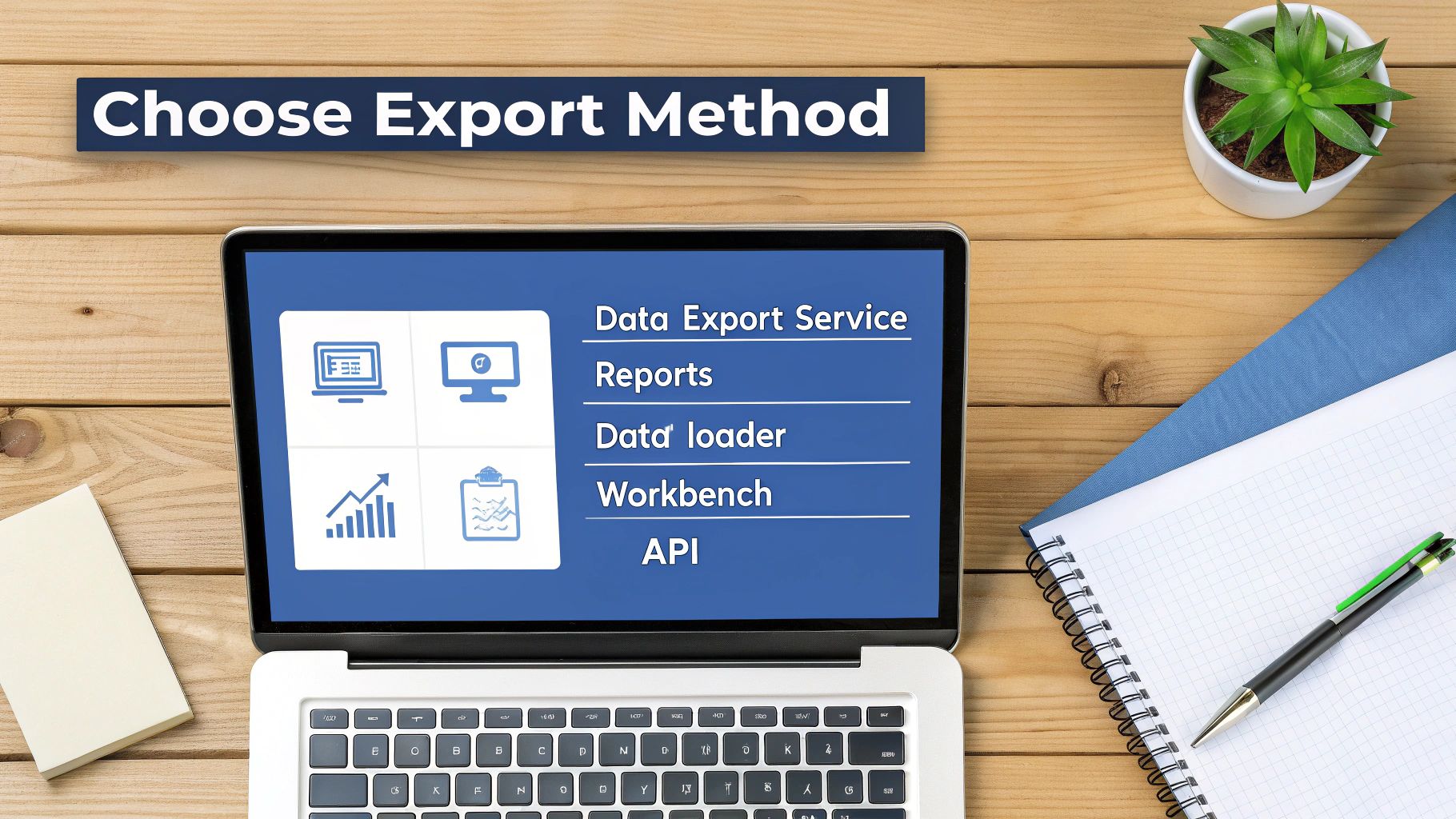
Whether you are pulling a quick list for a targeted Account Engagement (Pardot) campaign or engineering a large-scale data pipeline for a MarTech integration, understanding your options is paramount. Let’s review the primary ways to export data from Salesforce and identify the ideal scenario for each.
The Native Data Export Service
Consider Salesforce’s built-in Data Export Service your organization-wide insurance policy. It is designed for comprehensive backups—a scheduled snapshot of your entire Salesforce environment. You can configure it to run weekly or monthly, and it packages all selected object data into a single zip file of CSVs.
This method is ideal for:
- Complete data backups for archival or compliance.
- Disaster recovery planning.
- Obtaining a full data copy before a major system migration.
The setup is a straightforward point-and-click process within Salesforce Setup, making it accessible to non-technical users. However, while thorough, this method is not designed for speed. Once an export is initiated, Salesforce places it in a queue, and completion can take hours or even days, especially if files and attachments are included. It is a “set it and forget it” tool, not a solution for urgent data requests.
Exporting Salesforce Reports
For routine, on-demand data pulls, nothing surpasses a standard Salesforce Report. This is the most familiar method for sales, marketing, and RevOps professionals who need a specific list for a campaign, a quick analysis for a meeting, or a status update for stakeholders.
The process is intuitive: build a report with the precise columns and filters required, run it, and click “Export.” It is fast and requires no specialized skills beyond proficiency with the report builder. The primary drawback is its significant data volume limitations.
For instance, in Lightning Experience, you are limited to 100,000 rows for “Details Only” exports, with lower limits for formatted reports. While sufficient for small businesses, larger enterprises can easily exceed this ceiling. This limitation often necessitates the use of more powerful tools when handling multi-million-row datasets for compliance checks or large-scale analysis. You can find a complete overview of these technical limits in Salesforce’s official documentation.
Salesforce Data Loader
When you must move massive amounts of data with surgical precision, Data Loader is the designated workhorse. It is a client application installed on your computer that connects directly to your Salesforce org, built specifically for bulk data operations like exporting.
Data Loader’s power lies in the control it provides. You can write Salesforce Object Query Language (SOQL) to define exactly which data to extract. This is a game-changer for complex extractions with criteria that are impossible to replicate in a standard report. It handles millions of records seamlessly, making it indispensable for large-scale migrations or populating a data warehouse.
RevOps Pro Tip: I consistently recommend Data Loader for any export intended for subsequent data updates or migrations. It allows you to easily extract the crucial 18-character Salesforce IDs, which is the key to avoiding VLOOKUP errors in Excel and guaranteeing data integrity when re-importing records into Salesforce.
Workbench: A Quick and Powerful Alternative
Workbench is a web-based tool favored by administrators and developers for its raw power and simplicity. While not an official Salesforce product, it provides direct, no-frills access to your org’s data and metadata via the APIs.
For exports, Workbench is excellent for running and testing SOQL queries on the fly. You can craft a complex query to retrieve a highly specific dataset, execute it, and immediately download the results as a CSV. It is significantly faster than configuring a Data Loader job but far more powerful than a report, making it the perfect middle ground for ad-hoc technical investigations or hyper-specific data pulls.
Connecting Directly via APIs
For the most advanced and automated use cases, you can connect directly to the Salesforce APIs. This is the approach used by third-party integration platforms (ETL/ELT tools) and custom-built applications to create automated data pipelines that operate without manual intervention.
Using APIs is ideal for:
- Building automated integrations with BI tools like Tableau or Power BI.
- Syncing data with a data warehouse such as Snowflake or BigQuery.
- Connecting Salesforce to other critical enterprise systems in your MarTech stack.
For example, a marketing operations team could use an API-based tool to continuously pipe campaign performance data from Salesforce into a BI platform for real-time dashboarding. Tapping into the APIs is a strategic decision, typically part of a larger data architecture plan, offering ultimate flexibility but requiring a significant investment in technical resources.
To help you decide at a glance, here’s a quick comparison of these five methods.
Salesforce Data Export Method Comparison
| Export Method | Best For | Data Volume | Technical Skill | Handles Attachments? |
|---|---|---|---|---|
| Data Export Service | Scheduled, full-org backups for compliance or archival. | Very High | Low | Yes |
| Salesforce Reports | Quick, filtered lists for non-technical users. | Low (<100k rows) | Low | No |
| Data Loader | Large, complex data migrations and updates. | Very High | Medium | Yes (separate export) |
| Workbench | Quick SOQL queries and ad-hoc technical data pulls. | Medium-High | No | |
| APIs | Automated, real-time data integrations and pipelines. | Very High | High | Yes |
Each tool serves a distinct purpose. Using a report for a multi-million-row backup is impossible, while setting up an API connection for a one-off list of 50 contacts is inefficient. Matching the tool to the task will save time, prevent frustration, and ensure your data is precisely where you need it, when you need it.
A Hands-on Guide to Using Salesforce Data Loader
For any serious RevOps or marketing operations professional, Salesforce Data Loader is the heavy-duty tool for complex data challenges. When a standard report is insufficient and the weekly Data Export service is too slow, Data Loader is the optimal solution for bulk data operations. This is a practical field guide with actionable advice to help you extract the data you need without common pitfalls.
Data Loader is a client application installed on your machine that establishes a direct, powerful connection to your Salesforce org. It is designed to move massive data volumes—up to five million records at a time—making it the go-to choice for system migrations, complex data extractions, and comprehensive backups.

Its interface is clean and direct. For our purposes, we will focus on the Export and Export All functions.
Mastering the Export Process, Step by Step
Let’s walk through a classic RevOps scenario: your GTM team requires a list of all contacts associated with accounts in the “Technology” industry for a new campaign. While a report is an option, Data Loader offers surgical precision, allowing you to pull exact fields—including the critical record IDs needed for future updates.
First, launch Data Loader and click Export. You will need to log in; I recommend using OAuth for enhanced security. Select your environment (Production or Sandbox) and sign in.
Once authenticated, you will see a list of every standard and custom object in your org. Select the Contact object. Next, specify a file path and name for the output—for example, Tech_Industry_Contacts.csv on your desktop.
Now for the step where Data Loader demonstrates its power. Instead of being constrained by a report builder, you can write a specific Salesforce Object Query Language (SOQL) query. A simple query builder is available to help you select fields and define filters.
For our scenario, the query would be:
SELECT Id, FirstName, LastName, Email, Account.Id, Account.Name FROM Contact WHERE Account.Industry = 'Technology'
This query extracts essential contact details and—critically—the related Account ID and Name in a single operation, which is a significant time-saver for mapping relationships later.
Pro Tip: Always Grab the 18-Character ID.
A common mistake is exporting the 15-character ID from the URL bar. This is a critical error, as tools like Excel are case-insensitive and cannot distinguish between IDs like “a012E00000AbCdE” and “a012E00000Abcde,” leading to VLOOKUP failures and data corruption. Data Loader automatically provides the 18-character, case-safe ID, which prevents these data integrity issues.
Fine-Tuning Your Export for Performance
With your query finalized, a couple of settings can be adjusted for optimal performance, especially with large datasets.
- Batch Size: The default setting is 2,000 records, which is generally sufficient. For extremely large exports experiencing slow performance, you can adjust this value in the settings.
- Field Mapping: While not required for a simple export, familiarizing yourself with the interface is valuable. Data Loader automatically maps your query fields to columns in the CSV. This same screen is critical for inserts and updates, making it a core skill.
For a comprehensive overview of its full capabilities, refer to our complete guide on using Data Loader in Salesforce.
Once configured, click Finish. Data Loader will execute the export and generate two files: one with your successfully exported data and another for any errors. The resulting CSV is now ready for your GTM team, containing clean, accurate data with the stable 18-character IDs required for any subsequent operations. This is precisely why it is an essential tool in any RevOps professional’s toolkit.
Preparing Your Data for a Successful Export
Any seasoned Salesforce professional knows that a successful data export is determined long before clicking the “Export” button. Teams often rush the process, only to end up with a disorganized, incomplete, or unusable file. Strategic preparation is what separates a clean, actionable dataset from a frustrating, time-consuming exercise.
Initiating an export with Data Loader or a report without a clear plan is a common misstep. The goal is not just to extract data, but to produce a dataset that is immediately usable for its intended purpose, whether that is powering a BI dashboard, migrating to a new system like HubSpot, or fueling a marketing campaign.
Audit Your Data Model and Define Your Scope
First, you need a precise map of the data you intend to extract. Avoid exporting an entire object “just in case.” A quick audit of your data model will help you pinpoint the exact objects and fields required.
For instance, if you are exporting contacts for a marketing campaign, simply extracting the Contact object is insufficient. To properly segment your list, you will likely need related Account information, such as Account.Industry or Account.AnnualRevenue.
- Identify Primary Objects: Determine the main record you need. Is it Contacts, Opportunities, or a custom object?
- Map Related Objects: Identify other records that hold crucial context, such as Accounts linked to Contacts or the individual Line Items on an Opportunity.
- Select Specific Fields: Create a definitive list of every field required, noting their API names. Including unnecessary fields adds noise and increases file size.
Finalizing this scope at the outset prevents the common scenario of discovering a missing critical field midway through your analysis, forcing you to restart the entire process.
Verify User Permissions to Avoid Access Errors
One of the most frequent obstacles to a successful export is an access error, which is almost always a permissions issue. The Salesforce user account executing the export must have the necessary permissions to view and extract the target data.
Before you begin, confirm that your user profile or an assigned permission set includes these two key permissions:
- “View All Data”: This permission allows you to see all records for a given object, bypassing sharing rules that might otherwise restrict visibility.
- “Export Data”: This permission grants the ability to use tools like Data Loader or the weekly export feature.
Without these permissions, your export may fail or, worse, run successfully but yield an incomplete dataset containing only the records you personally own or have access to. A brief consultation with your Salesforce administrator can prevent significant delays.
A clean export is the direct result of a well-defined process. Treat data preparation as a vital component of your overall data governance framework. For a deeper understanding, exploring established data governance best practices can provide a strategic foundation for all your data management activities.
Craft Precise Queries and Understand Field Types
For highly targeted exports, particularly with tools like Data Loader or Workbench, a well-written Salesforce Object Query Language (SOQL) query is indispensable. SOQL enables you to apply specific filter criteria that are often too complex for a standard Salesforce report.
You must also consider the type of data you are exporting. For example, there is a significant difference between a formula field and its underlying data. A formula field, such as one calculating a contact’s age, provides the final calculated value. If your analysis requires the raw data—in this case, the Birthdate__c field—you must explicitly include that field in your query.
Achieving this level of precision is rooted in solid data management principles. To ensure the data you extract is accurate and actionable, it is essential to follow essential data management best practices. This strategic approach ensures your export data salesforce initiative produces a valuable asset, not just a random spreadsheet of records.
Handling Common Challenges And Advanced Scenarios
Every data export strategy eventually encounters challenges. Navigating complex object relationships, large files, or API limits is what distinguishes a seasoned RevOps professional. This is where we move beyond basic exports to solve real-world problems that can derail a project.

When you need to export data from Salesforce, the complexity increases exponentially beyond single, flat files. Migrating an entire Opportunity history or engineering a reliable data pipeline for your BI tool demands a deeper level of planning and strategic problem-solving.
Managing Related Records And Maintaining Integrity
A primary challenge is exporting data from multiple related objects while preserving their connections. Exporting Opportunities is of limited value without their associated Opportunity Line Items or the corresponding Account. You cannot simply combine them into a single file and expect a positive outcome.
The only reliable method is a multi-step export that respects parent-child relationships.
- Start with the Parent Object: Always begin with the highest-level object, such as Accounts. The critical piece of information to capture here is the unique 18-character Salesforce ID, which will serve as the key to link all related records.
- Move on to the Children: Next, export your child objects, such as Contacts or Opportunities. Ensure your export includes the parent record’s ID field (e.g., the
AccountIdon the Contact object). - Stitch the Data Together Externally: With your separate CSV files, use a tool like Excel (VLOOKUP or XLOOKUP), a database, or a data enrichment platform like Clay.com to join the datasets. By matching the
AccountIdfrom your Contact file to theIdin your Account file, you perfectly reconstruct the relationship outside of Salesforce.
Following this methodical process ensures 100% data integrity and prevents orphaned records from compromising your migrations or analysis.
Dealing With Large Files And Attachments
Attachments, content files, and documents can complicate a bulk data export. They increase the size of export files and can dramatically slow down processing times. Selecting the “include attachments” option in the weekly Data Export service can extend a job from hours to days.
For any large-scale export involving files, it is best practice to handle them separately.
- Use Data Loader: The Data Loader is ideal for this task. You can use it to export the
ContentVersionobject, which provides a clean list of all your files and their metadata. From there, you can use a script or another process to download the actual files. - Filter Ruthlessly: Before starting, determine if you truly need every file. You can often filter out old or irrelevant attachments to significantly reduce your export size.
A common error is underestimating how much file attachments will impede an export’s performance. For a full org backup, I always recommend running two separate exports: one for all standard and custom object data, and a second, dedicated export just for files and attachments. This isolates the bottleneck and provides your core operational data much faster.
Scheduling Exports And Respecting Governor Limits
When you require data on an ongoing basis for a BI tool or regular backups, automation is the goal. However, you cannot simply configure a script to continuously request data from Salesforce. As a multi-tenant platform, Salesforce enforces strict governor limits to ensure system stability for all users.
These limits cap actions like the number of API calls you can make in a 24-hour period. A poorly designed automated export can exhaust your daily quota, causing critical integrations (such as your marketing automation platform) to fail.
Any scheduled automated data flow must be designed with these limits in mind.
- Use the Bulk API: For large data volumes, the Bulk API is non-negotiable. Whether accessed via Data Loader or another tool, it is designed for processing large datasets asynchronously and is far more efficient with API calls than the standard REST API.
- Stagger Your Jobs: Do not schedule all your exports to run simultaneously. Space them out, preferably during off-peak hours, to distribute the API load.
- Export Deltas, Not the Whole Thing: Instead of exporting the entire database daily, design your process to only extract records created or modified since the last run. A simple
WHERE LastModifiedDate > YESTERDAYin your SOQL query can make a significant difference.
By operating within these rules, you can build reliable, automated data pipelines that do not disrupt daily operations or trigger alerts from your Salesforce administrator.
Salesforce Data Export FAQs
Even experienced RevOps professionals encounter common roadblocks when extracting data from Salesforce. Let’s address some of the most frequently asked questions.
What’s The Best Way To Export Over A Million Records From Salesforce?
When dealing with a massive dataset exceeding one million records, the optimal solution is the Salesforce Data Loader used with the Bulk API. This combination is specifically engineered for heavy-lifting data operations.
The Bulk API processes data in large, asynchronous batches, preventing browser timeouts. A standard Report export is limited to 100,000 rows, and the weekly Data Export service can be slow. With Data Loader, you have full control. Increase the batch size in the settings (a range of 2,000 to 10,000 is a good starting point) and ensure the Bulk API option is enabled. This configuration provides the speed and reliability required for large-scale extractions.
How Do I Export Data From Multiple Related Objects Together?
It is a common misconception that you can export multiple objects into a single file with native Salesforce tools. The correct method is to export each object separately and then join them externally.
Here is the practical workflow:
- Start with the parent object. For example, export a list of all your Accounts first, ensuring you capture their unique 18-character Salesforce IDs.
- Then, export the child object. Next, export your Contacts. Your export must include the
AccountIdfield, which serves as the “foreign key” linking each Contact back to its parent Account. - Finally, join them externally. With your two CSVs, use a VLOOKUP or XLOOKUP in Excel/Google Sheets, or a proper join in a database tool using SQL, to merge the two datasets using the Account ID as the common identifier.
This process ensures you maintain the critical relationships between your records.
My Exported Salesforce IDs Are Wreaking Havoc On My VLOOKUPs. Why?
This classic Salesforce ID issue almost always stems from using the wrong ID format. Salesforce generates two ID versions for every record: a 15-character case-sensitive ID (visible in the URL) and an 18-character case-insensitive ID (used by APIs).
The problem is that spreadsheet applications like Microsoft Excel are not case-sensitive. To Excel, “A0b…” and “A0B…” may appear as identical IDs, leading to mismatched data and failed lookups.
Pro Tip: Always use the 18-character ID for any data work performed outside of Salesforce. Data Loader exports this version by default. If you need it in a report, you can create a custom formula field with the
CASESAFEID()function to generate it.
What’s The Difference Between The Data Export Service and A Report Export?
These two tools are often confused but are designed for entirely different purposes.
The Data Export Service is your full-system backup solution. It is intended for extracting all data from specified objects and packaging it into a zip file of CSVs. You can schedule it to run weekly or monthly, making it ideal for disaster recovery or archival. It is comprehensive but not fast.
In contrast, a Report export is for surgical data extraction. You use it when you need a specific, filtered slice of data immediately for analysis or a quick task. It offers full control over columns and filters but has strict row limits and is not the appropriate tool for a complete data backup.
At MarTech Do, we specialize in solving complex data challenges to align your marketing and sales operations. Whether you are planning a full data migration or need to build a scalable RevOps foundation, our team provides the strategic guidance and hands-on execution to drive measurable growth. Learn more about how we can help at https://martechdo.com.